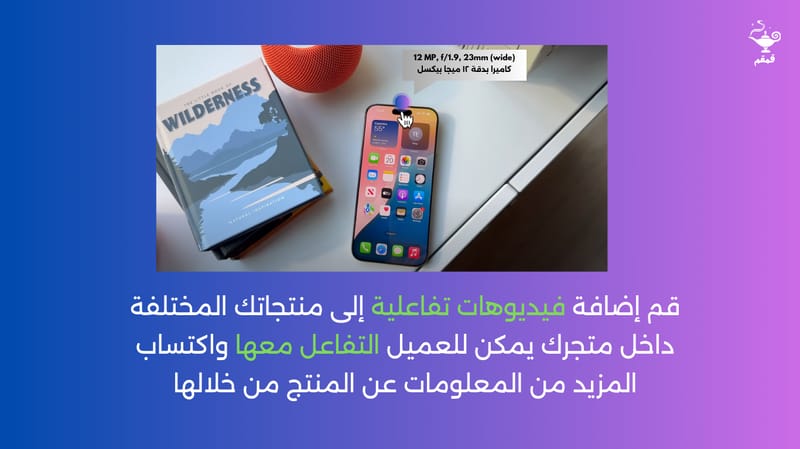


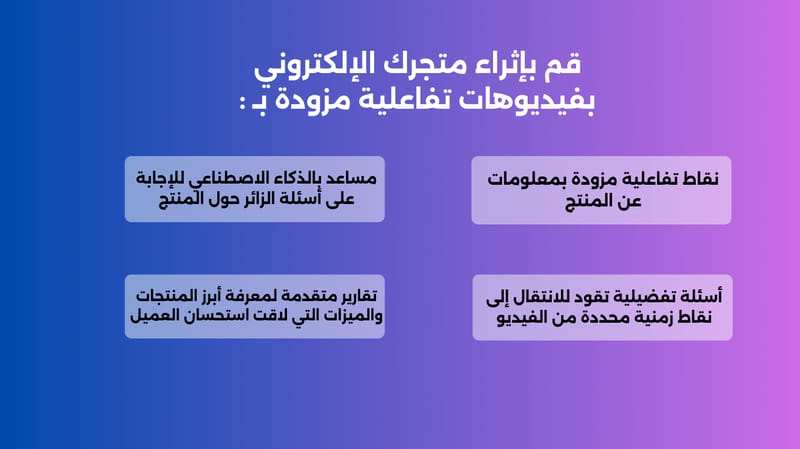
QmQm offers an advanced solution for creating interactive marketing videos for products within online stores. Its main goal is to enhance the visitor experience and increase the effectiveness of visual content compared to traditional images or static videos.
✅ Key Features:
• Easy Integration of Existing Videos
Videos can be imported effortlessly from YouTube or uploaded directly from a personal device.
• Extensive Support for Interactive Elements
Including:
• Text overlays
• Images
• Interactive hotspots
• Buttons and multiple-choice options
• And a variety of other tools that enrich the viewing experience
• Improved Shopping Experience
By transforming the conventional product showcase into an interactive journey, QmQm helps customers better understand products and make more informed decisions.
• Built-in AI Interaction
Visitors can ask questions during the video, and QmQm’s AI will respond instantly within the same video—eliminating the need to leave the store or wait for input from other users.
🛠️ How to Install QmQm on Salla Stores
To start using QmQm and unlock its full capabilities, follow these steps:
1. Open the Salla App Store
Search for the “QmQm” app and open its dedicated page.
2. Click “Install”
Grant the required permissions to enable QmQm to function properly within your store.
3. Verify Activation
Go to your store’s control panel and make sure QmQm appears as an active application.
4. Account Creation
A QmQm account is created automatically, and login details are sent to your email.
5. Create Interactive Videos on QmQm
After logging in, you can start creating the interactive videos you want.
6. Enable Integration
Return to the QmQm app page in your Salla store and activate the integration.
7. Add the Video ID
• Select the relevant product or category
• Enter the video’s unique ID in the designated field
Note:
The video ID can be found by going to the project page in QmQm Studio and clicking the “Share” button at the top left of the screen. The ID will be displayed alongside other sharing options.
8. Preview and Confirm
Open the product or category page where the video was added and ensure it appears correctly in the intended location.