




Turn your Instagram videos into part of the shopping experience inside your store.
InstaCart automatically imports your videos, helps you connect them to your products, and displays them in the most important places across your store: while customers browse, on product pages, inside the product gallery, and even in the cart.
Instead of letting a video stop working once it is published on Instagram, let it continue working with your customers inside your store.
Keep publishing as usual. We’ll handle the rest.
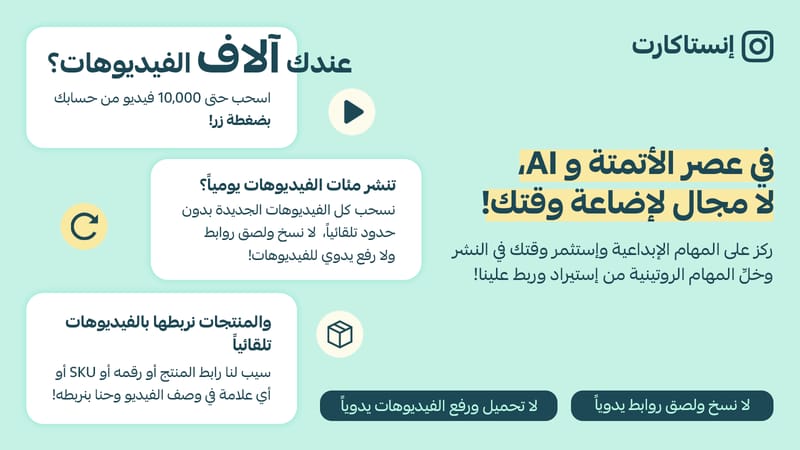
Once your account is connected, InstaCart automatically imports new videos on a regular schedule based on your plan.
If the video caption includes a product link, product ID, or SKU, the app can automatically connect that video to the matching product.
You can always connect videos to products manually as well.
Make use of your older videos
Don’t let your older videos get buried in your account.
Import them into the app, reuse them throughout your store, and InstaCart will continue importing your new videos automatically.
From video straight to cart
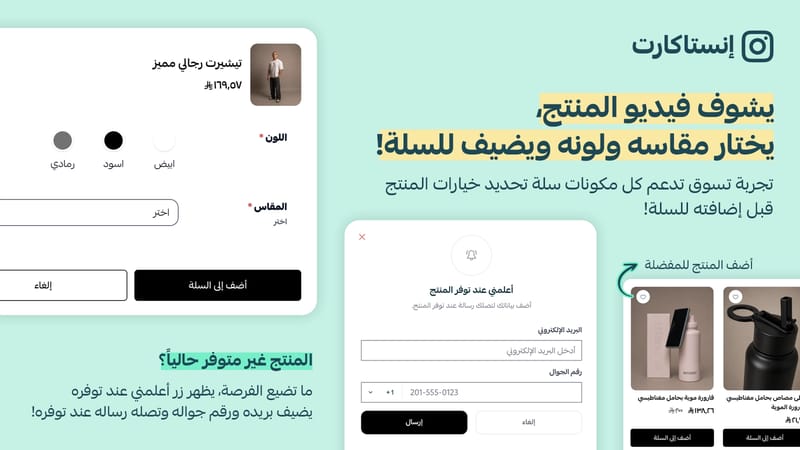
Customers can watch a video, open the product, choose the right options, and add it to the cart without interrupting their shopping experience.
The goal is to make video part of the buying journey, not just something customers watch.
8 apps in one
Use your videos in more places across your store:
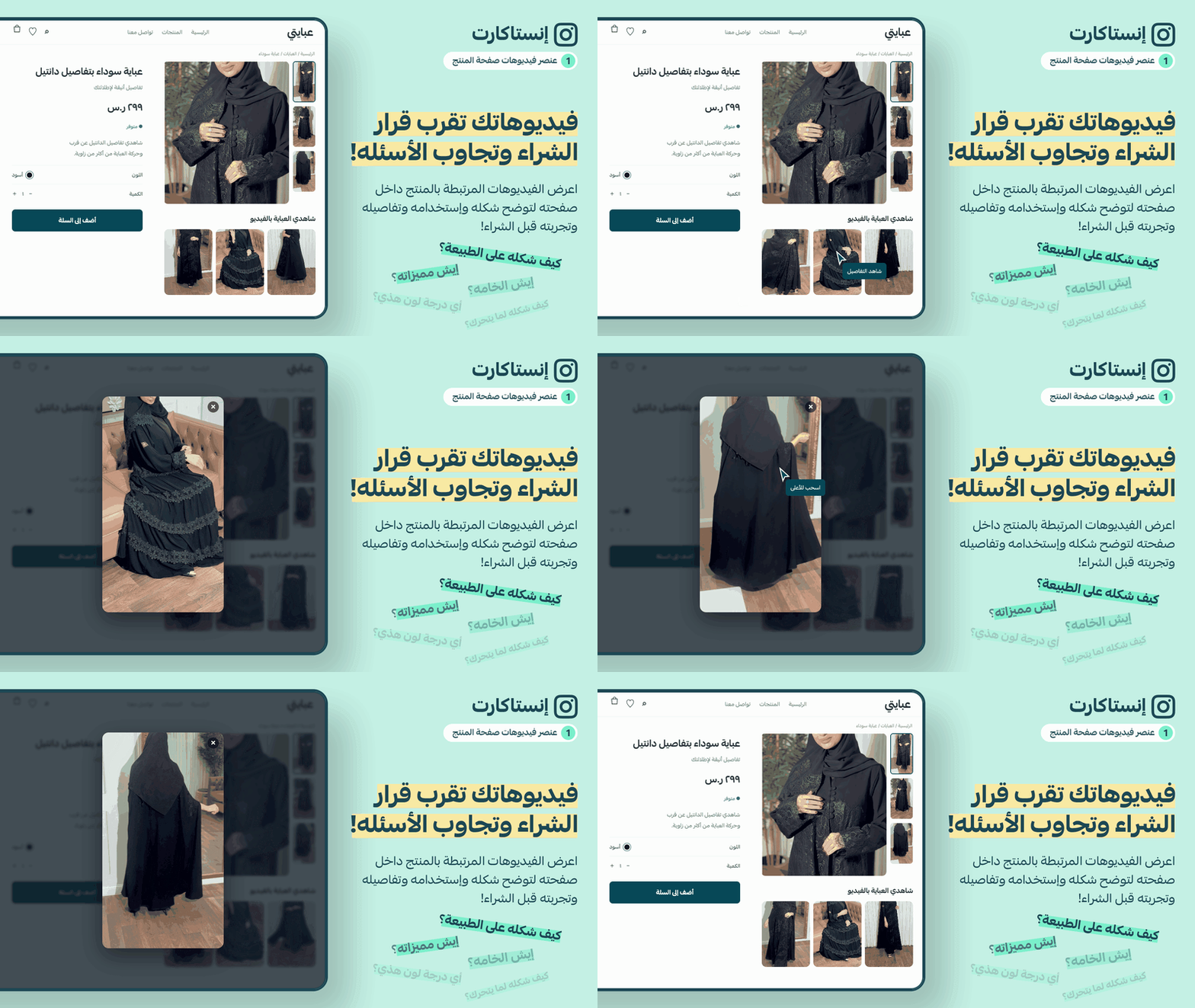
1. Videos on product pages
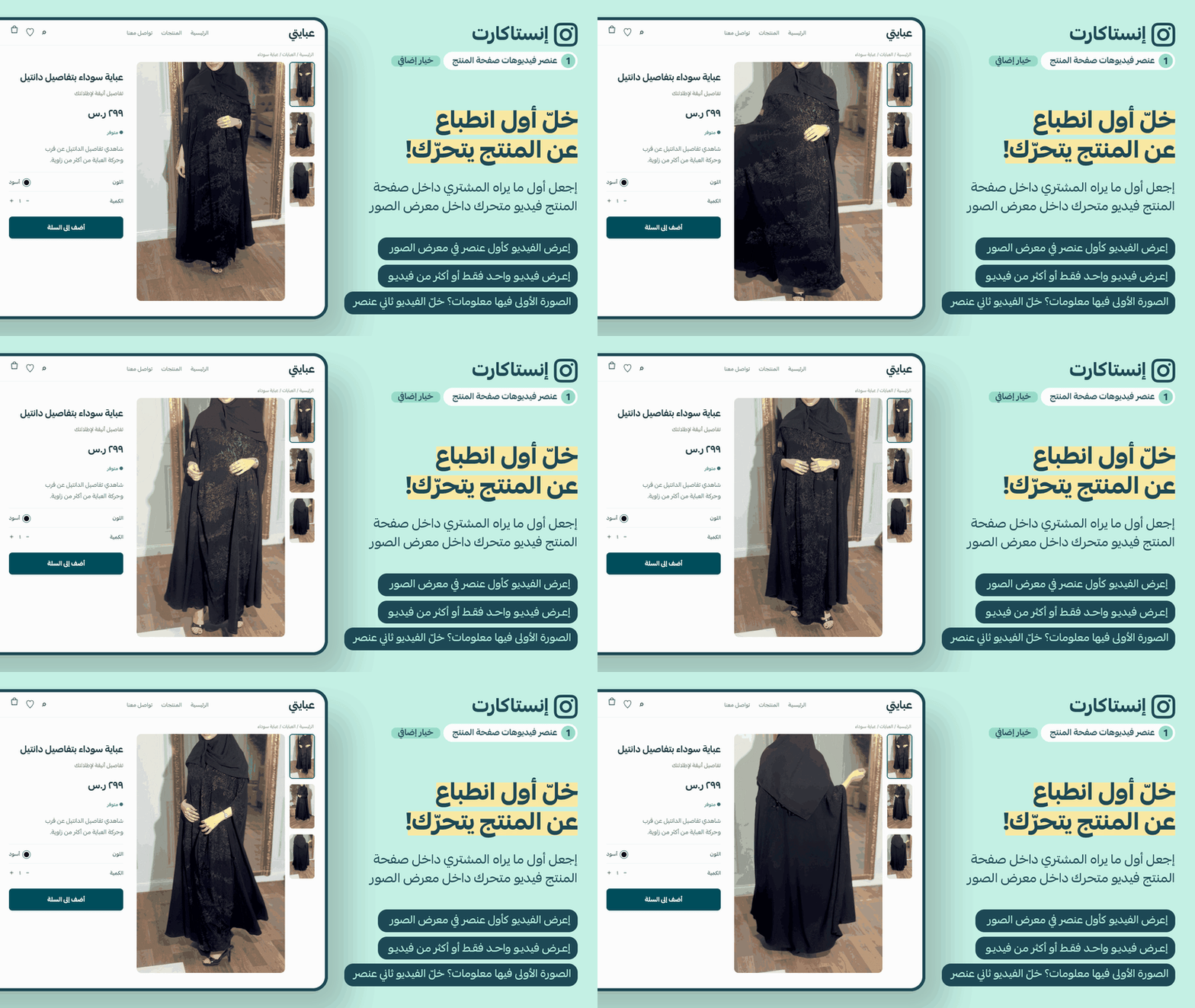
Display product videos directly on the product page, below the image gallery, below the title, or below the product description.
You can also add videos directly inside the product gallery, before the product images or after the first image.
This helps customers see more important product details, such as how it looks in real life, how it moves, its material and texture, its true color, and how it is used.
And they can see all of this without ever leaving the product page.
2. Reels
Display a floating video inside your store.
When customers click it, a video viewer opens where they can move between videos in an Instagram-style experience, while seeing the products connected to each video.
It is a quick and engaging way to help customers discover more products while browsing.
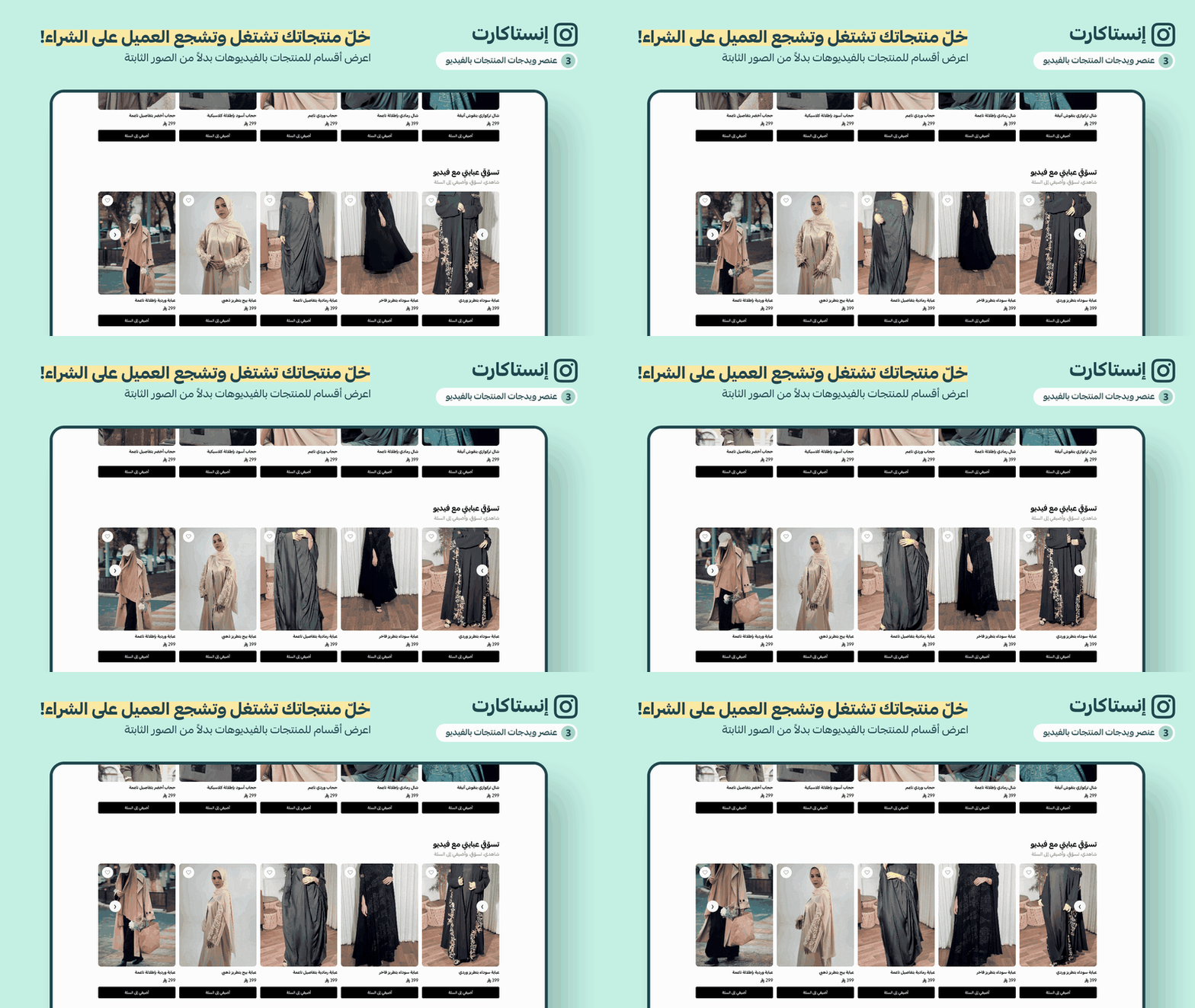
3. Show products with video
Display a collection of products in a grid or carousel, with a video connected to each product.
You can choose the products yourself, display products from specific categories, or show your latest products.
This helps customers understand each product better before opening its page, and they can add it to the cart directly from the section.
4. Display videos as Stories
Display your videos as circular Stories below the header or anywhere else in your store to catch visitors’ attention and open an easy video-viewing experience.
Perfect for showcasing new products, how-to videos, customer experiences, and offers.
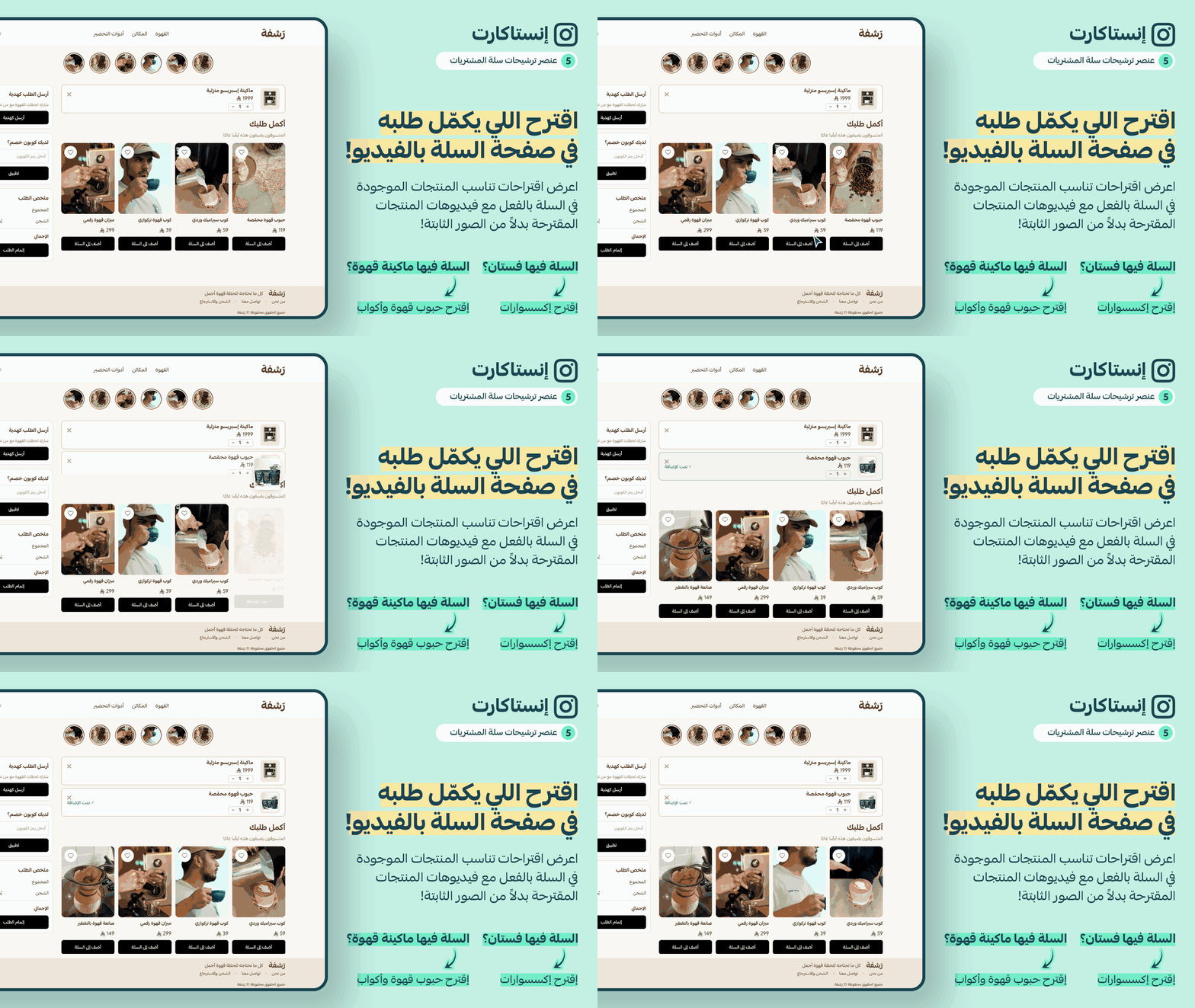
5. Recommend products in the cart with video
Display recommended products directly on the cart page before checkout.
For example, if a customer adds a coffee machine, you can recommend coffee beans, cups, or accessories together with videos that showcase them.
You decide when recommendations appear, which products are shown, and where they are displayed.
The app automatically excludes products that are already in the customer’s cart.
Customers can add recommended products directly to the cart. The cart updates automatically, and the added product disappears from the recommendations.
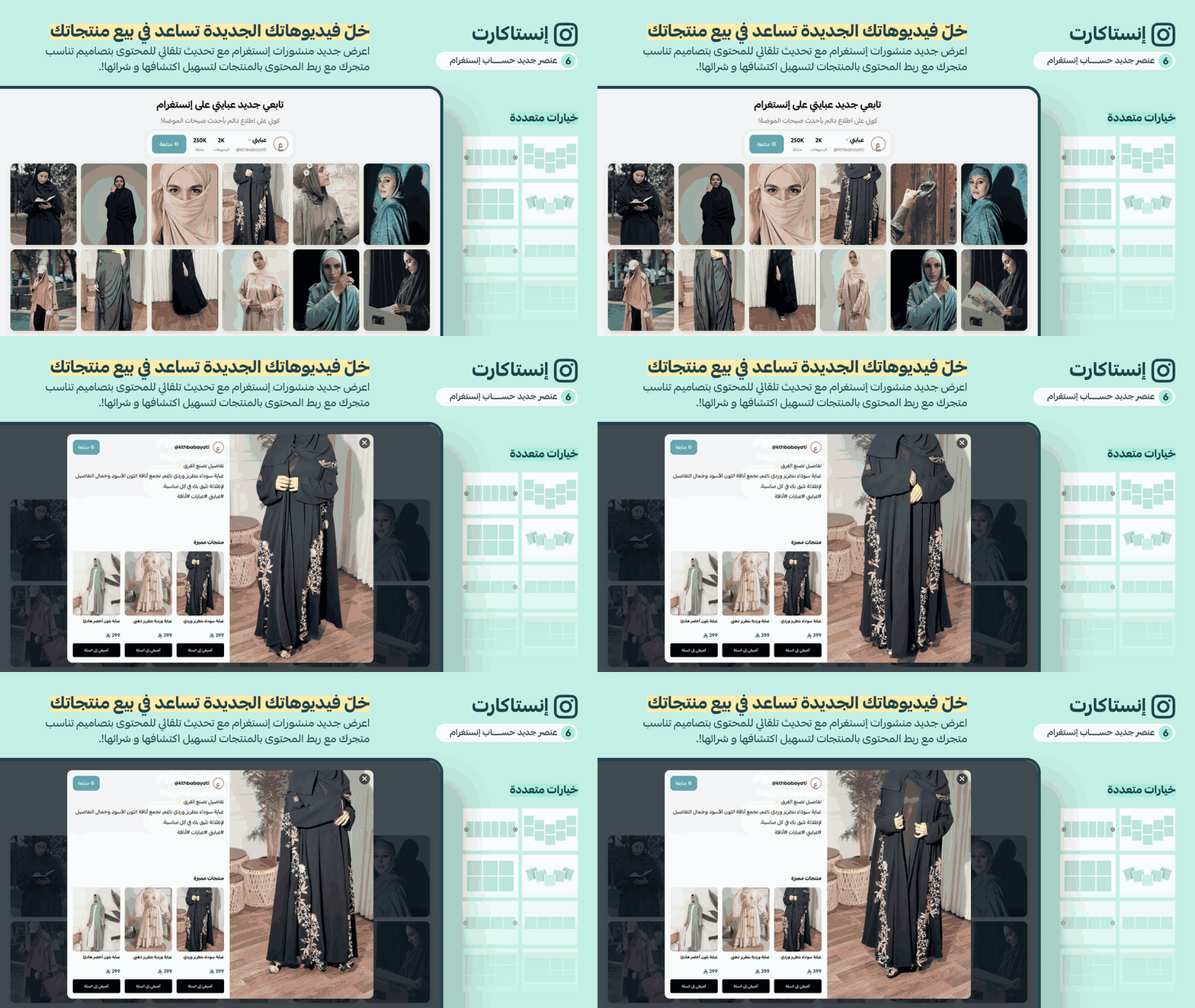
6. Display your latest Instagram content
Display your latest photos and videos from Instagram inside your store using multiple layouts and extensive customization options to match your store’s identity.
When customers click a video or image, they can see the products featured in that content.
Let customers watch the video, discover the product, and add it to their cart easily.
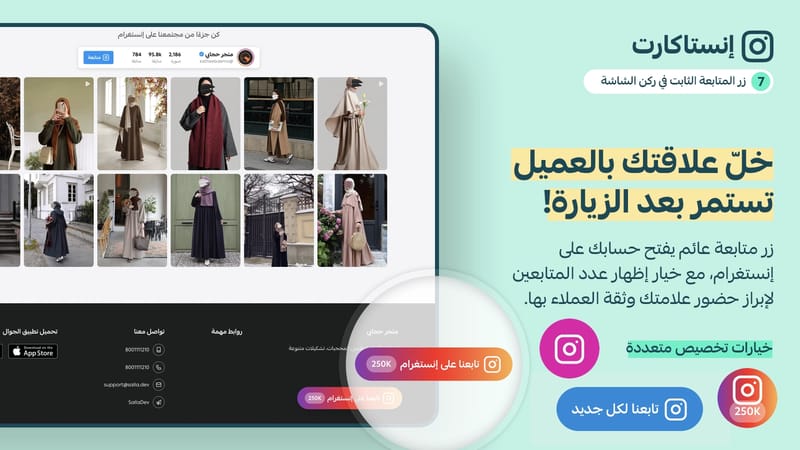
7. Instagram Follow Button
Add a floating button for your Instagram account inside your store.
Customize its appearance and placement, with the option to display your follower count to highlight your brand’s social presence and customer trust.
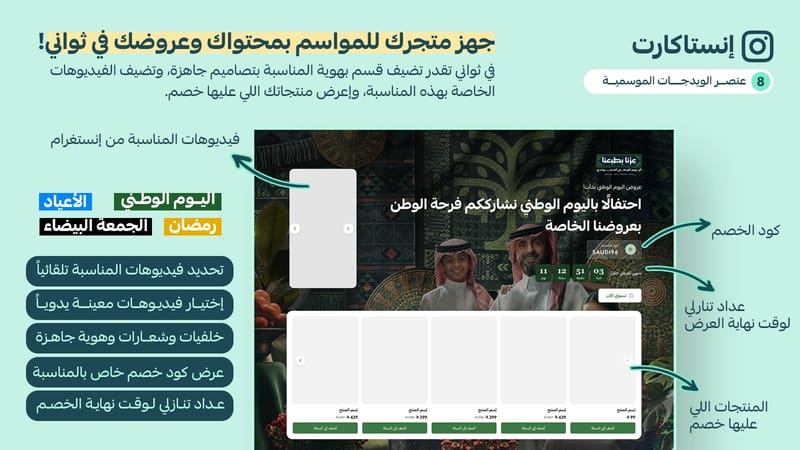
8. Get your store ready for seasonal campaigns
Create seasonal sections for occasions such as Saudi National Day, Ramadan, Eid, and White Friday in just seconds.
Bring together videos, products, text, discount codes, and countdown timers in one place.
No need to hire a designer to create special graphics for every occasion. The app provides suitable backgrounds, images, and colors for each season.
Advanced analytics
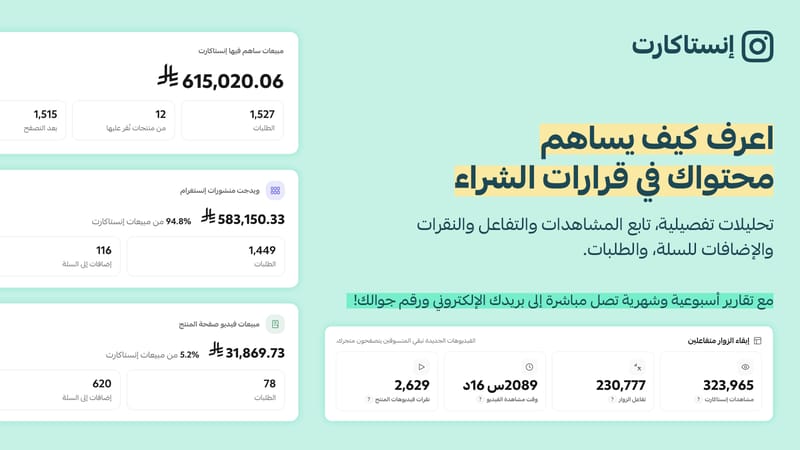
Find out which videos attract your customers.
Track your videos’ performance inside the store and see:
Number of views
Number of video plays
Watch time
Product clicks
Add-to-cart actions
Orders and sales attributed to interactions
Best-performing videos
This helps you understand which videos attract the most attention and contribute most to the shopping journey.
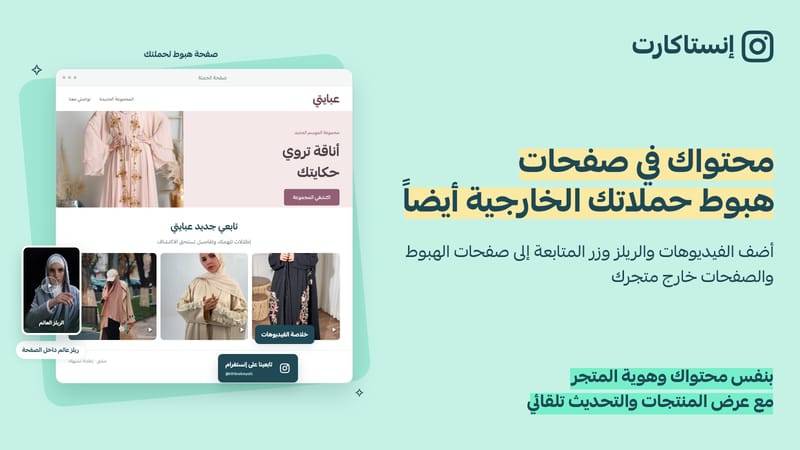
Use your videos on landing pages
You can also display InstaCart elements on your landing pages.
Use the same videos across your campaigns and marketing pages, and connect visitors directly with products in your store.
Why InstaCart?
Because your videos can work in more places across your store and help you showcase and sell your products:
While customers browse store pages
On product pages
Inside the product image gallery
On product cards instead of static images
Inside the cart page
During seasonal campaigns
On landing pages
With automatic importing, product linking, and analytics, you get a complete system for making better use of your Instagram videos throughout your store.
How do you get started?
1. Connect your Instagram account — no passwords, just your username!
Import your existing videos.
2. Choose where to display your videos
Enable the elements that work best for your store.
3. Connect your products
The app automatically connects videos to products when the product link, ID, or SKU appears in the video caption.
You can also connect them manually.
4. Relax and keep publishing
InstaCart takes care of importing your new videos automatically on a regular schedule.
Your videos are ready. Let them sell inside your store.
InstaCart helps you get more value from the videos you already create by displaying them where customers need them throughout the shopping journey.